

Add and invite a staff member
Who can do this: Business owners and admins Where to find it: Settings › Team ( /business/settings/team ) Add a team member and send them…
Who can do this: Business owners and admins
Where to find it: Settings › Team (/business/settings/team)
Add a team member and send them an email invite to sign in.
Before you start
- Have their name and email address ready.
Steps
- Go to Settings › Team and select Add Staff Member at the top of the team list.
- Enter First Name, Last Name and Email. Add Phone and Gender if you want.
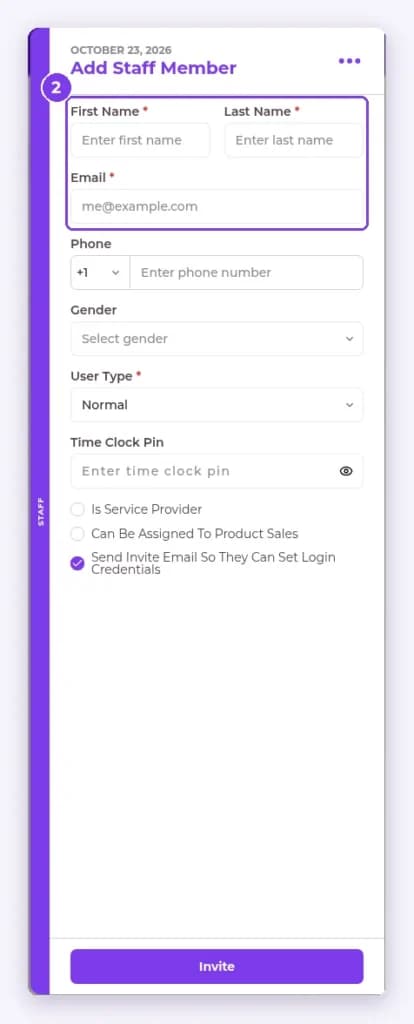
- Choose a User Type. It is set to Normal to start with.
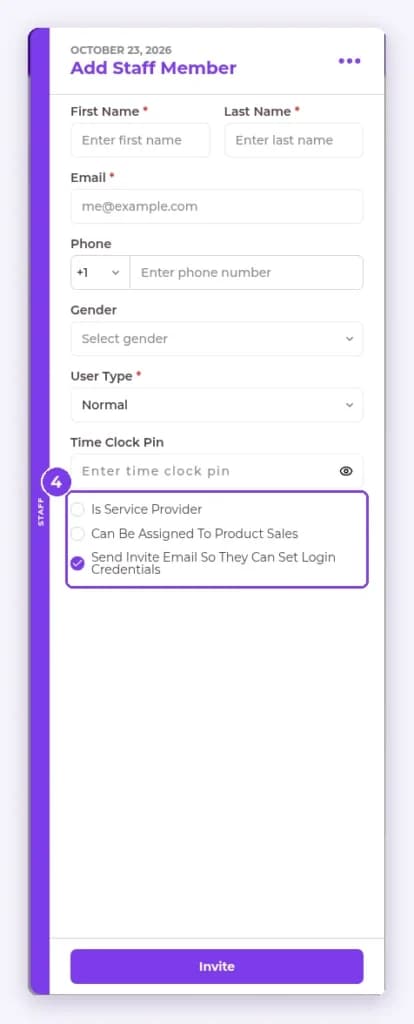
- Keep Send Invite Email So They Can Set Login Credentials ticked and select Invite.
Result
The team member appears in the staff list with their role and status.
Note: First Name, Last Name, Email and User Type are required.
FAQ
What if they did not get the invite?
Ask them to check their spam folder.
Related articles
Still have questions?
Our team is happy to help. Reach out and we'll get you sorted, or keep exploring the Learning Center.