

Edit a staff member's schedule and permissions
Who can do this: Business owners and admins Where to find it: Settings › Team › a staff member ( /business/settings/team ) Update a team…
Who can do this: Business owners and admins
Where to find it: Settings › Team › a staff member (/business/settings/team)
Update a team member’s working schedule and what they can access.
Steps
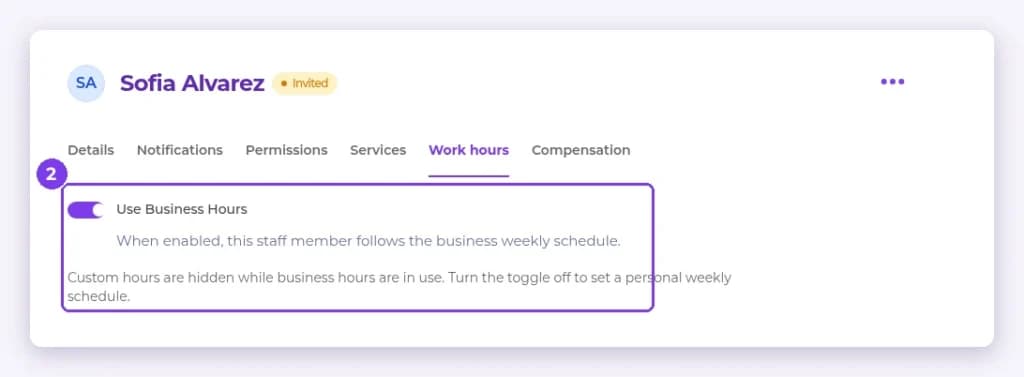
- Go to Settings › Team and select the staff member. Their profile opens with the tabs Details, Notifications, Permissions, Services, Work hours and Compensation.
- Open Work hours. When Use Business Hours is on, this staff member follows the business weekly schedule. Turn it off to set their own hours.
- Open Permissions to change what they can access, then save.
Result
The changes apply to that staff member.
Note: To block a staff member for a date range, use Quick Tools.
Related articles
Still have questions?
Our team is happy to help. Reach out and we'll get you sorted, or keep exploring the Learning Center.