
Marketing & Automation

Social Planner

Keep your salon's feed as busy as your chairs. Plan, preview, and publish social posts from the same place you run your bookings.

Social Planner

Plan The Whole Month On One Calendar

Going quiet is what costs you. One busy week and the feed stops, right when new clients are looking. The Planner tab puts your posts on a monthly calendar, so you can plan a month in one sitting, spot the gaps early, and keep your salon looking as busy as it is. Jump back to today in one click, and build the month around your chairs, not around an app.
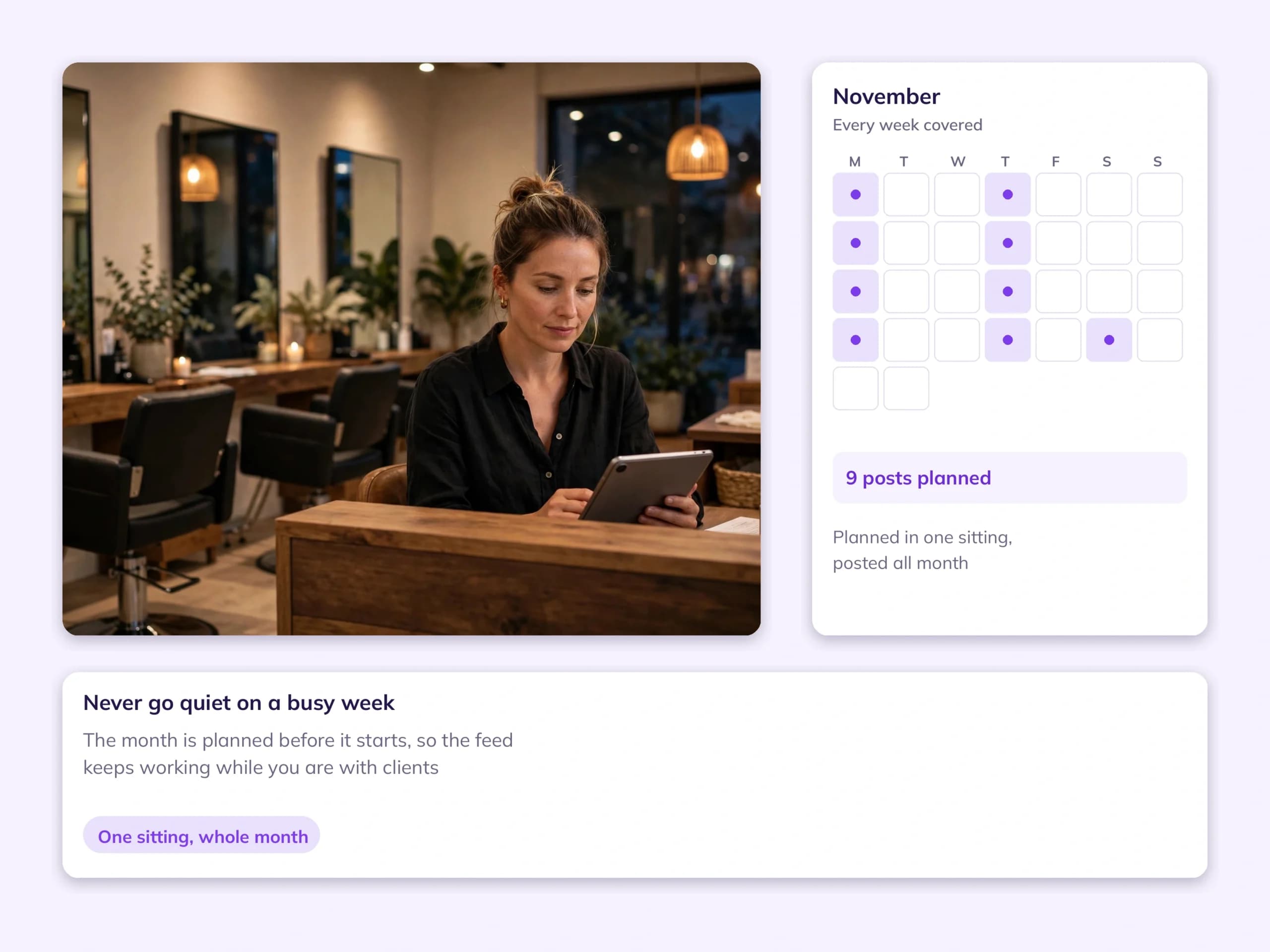
Salon owner planning a month of social posts in PandaCue after closing

Create Once, Publish Everywhere

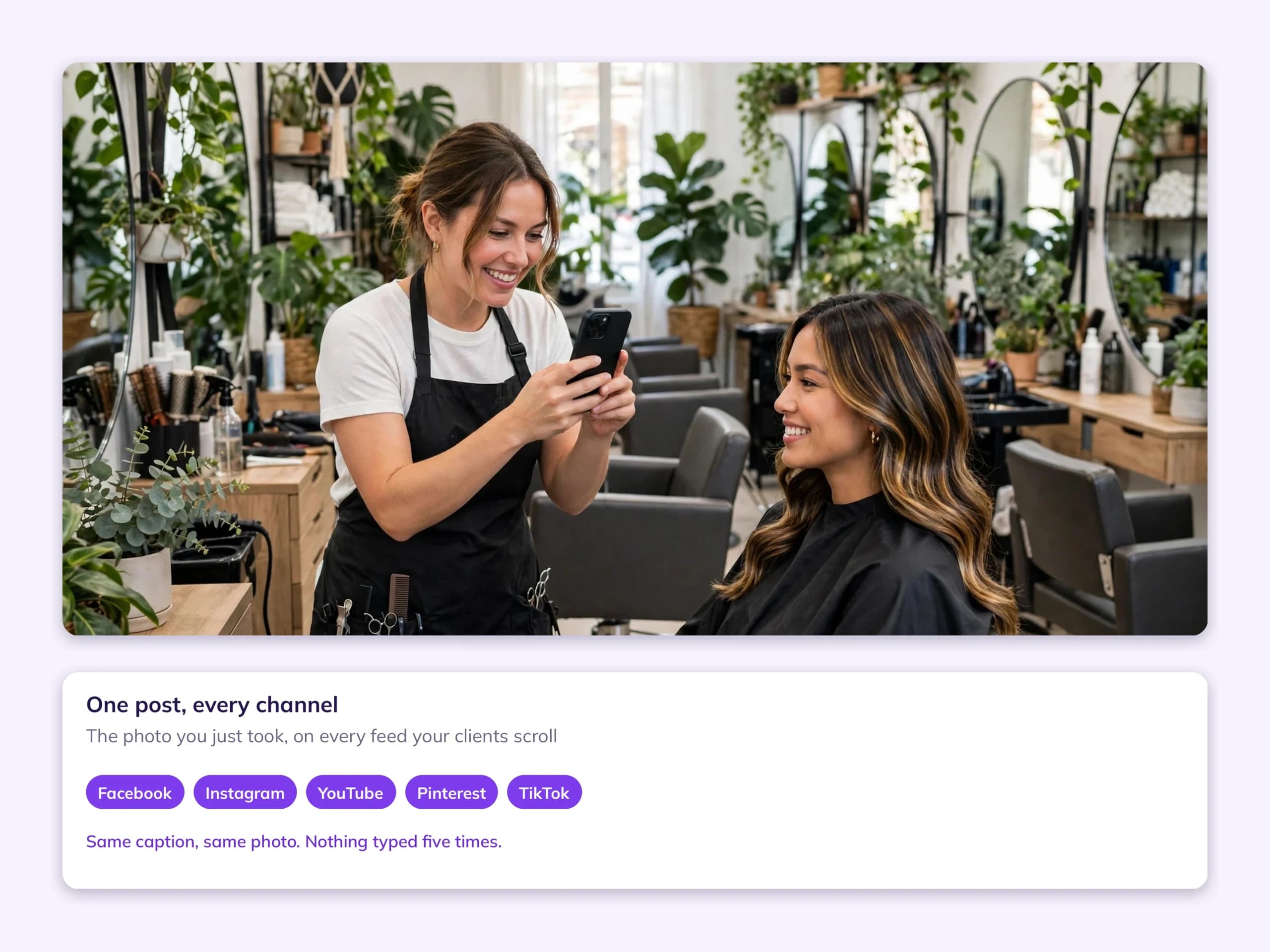
Posting the same photo five times in five apps is where the time goes. Here you write the caption and attach your media once, choose the channels under Post To, and the post goes out to Facebook, Instagram, YouTube, Pinterest, and TikTok together, so a finished style or a last minute opening reaches every audience at the same time.

Stylist photographing a client's finished hair for a social post published to every channel at once

Preview Every Post Before It Goes Out

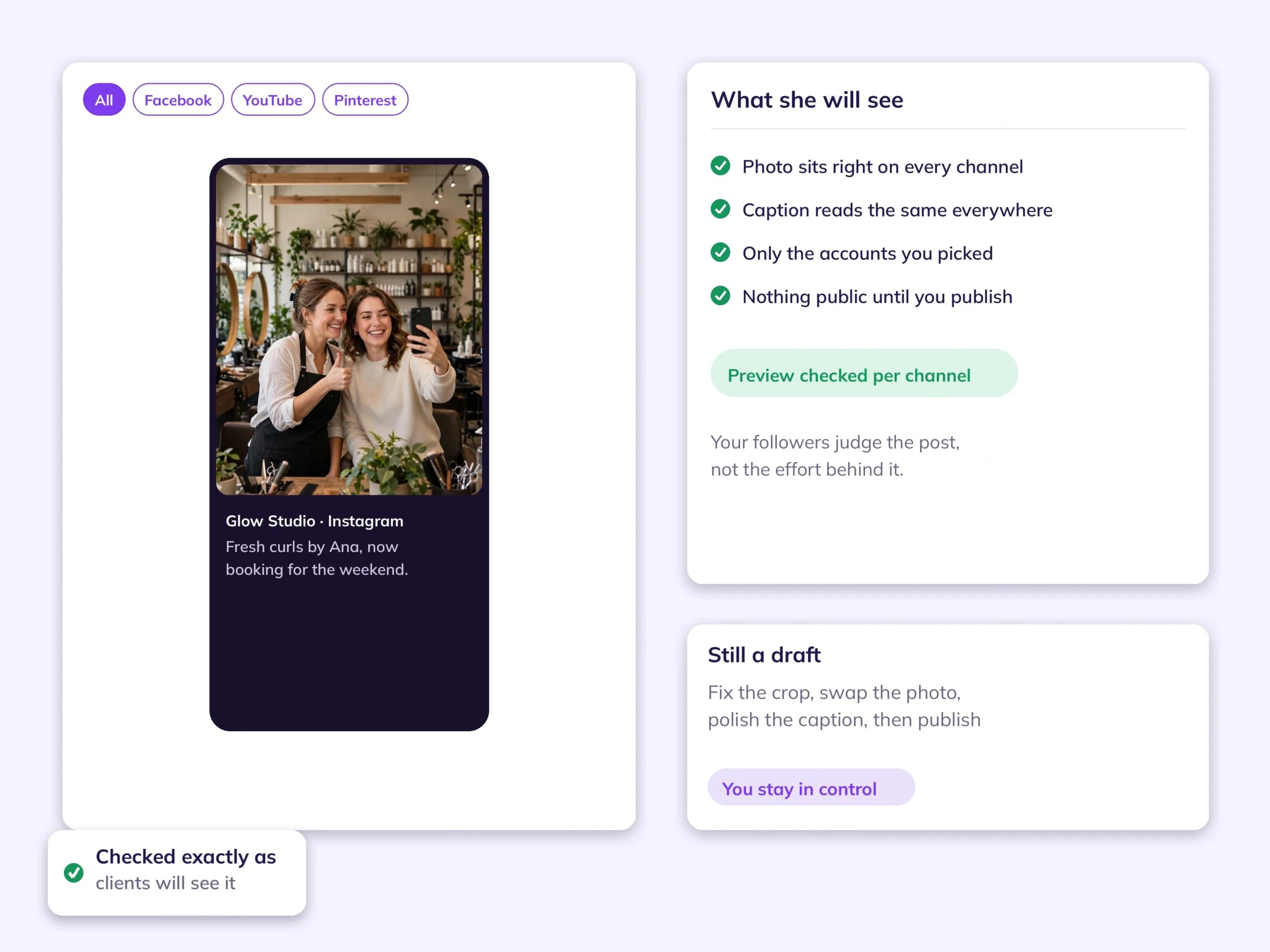
A cropped photo or a cut-off caption makes a good salon look careless. The Post Preview shows how your post will look on each channel before anything is published, and you can filter the preview by channel. Catch the problem while it is still a draft, not after your followers have seen it.

Previewing a salon's social post on a phone exactly as clients will see it before publishing

Keep Up With Comments In One Place

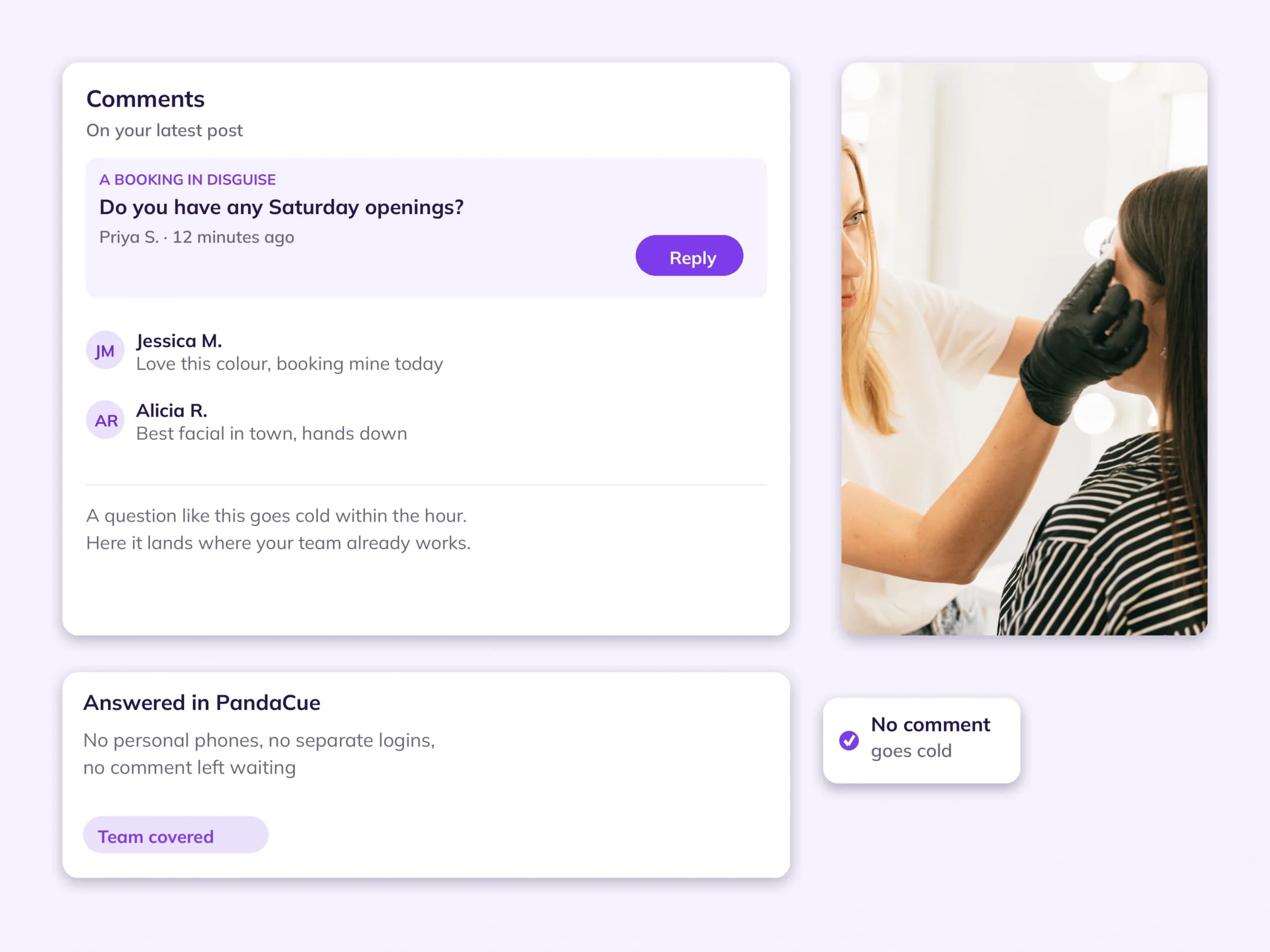
A comment on your post is often a booking in disguise, and it goes cold fast. The Comments tab keeps reactions to your posts inside the same system as the posts themselves, so your team can see what clients are saying about your work without handing around a personal phone or a separate login.

A booking question arriving as a comment on a salon's social post in PandaCue

See What Your Posts Are Doing

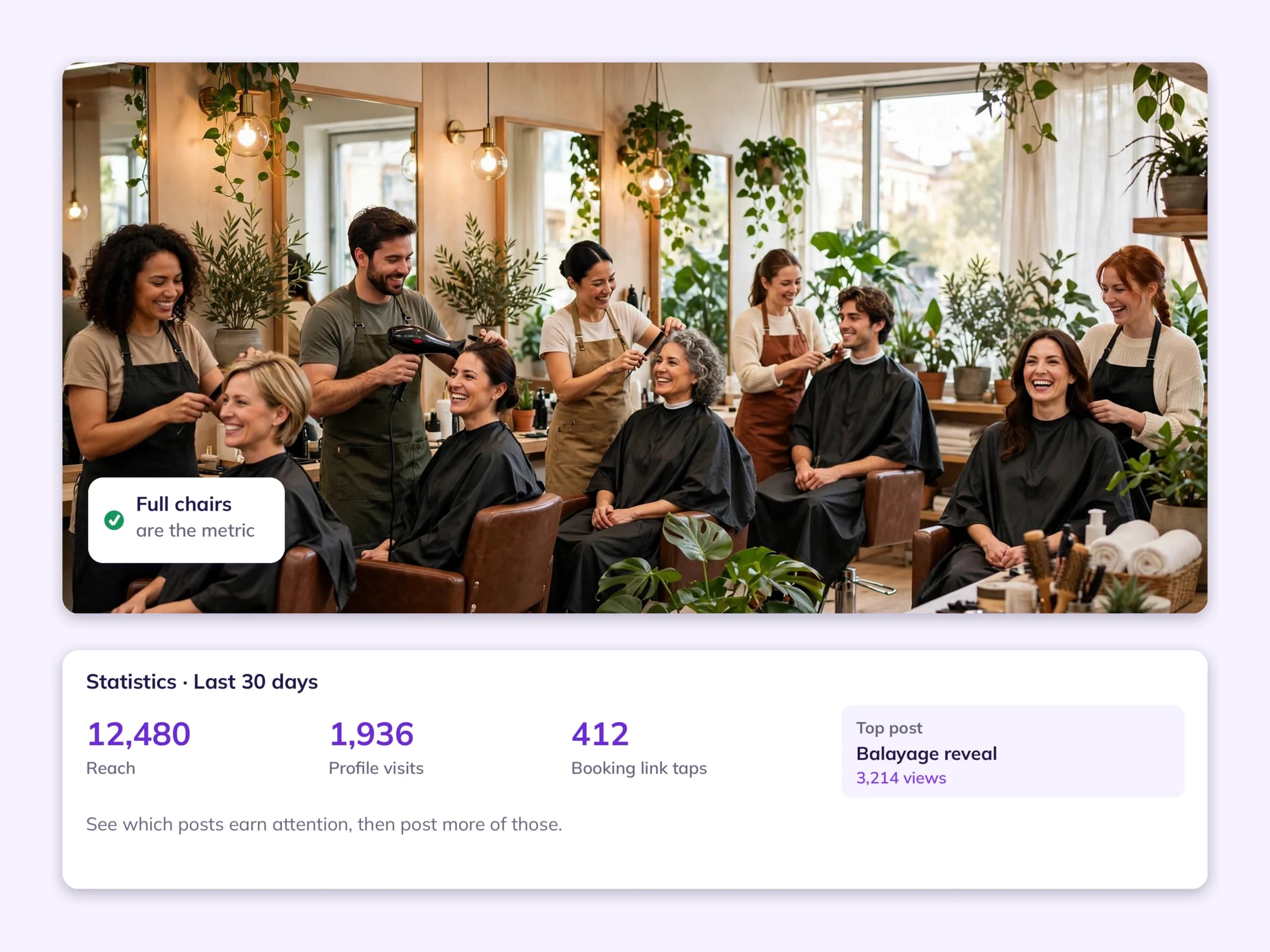
Guessing what to post wastes the little time you have. The Statistics tab shows how your social posts perform, so you can tell which styles, services, and offers earn attention, post more of what clients respond to, and let the quiet formats go.

A busy salon with every chair full, the result of staying visible on social media
FAQ

Frequently Asked Questions

Which social networks does PandaCue Social Planner work with?

Facebook, Instagram, YouTube, Pinterest, and TikTok. You connect each account once in Settings under Integrations, and the same accounts are then available in Social Planner and in Conversations.

Where do I connect my social media accounts?

In Settings, open Integrations and filter by Social Media, then choose Facebook, Instagram, YouTube, Pinterest, or TikTok and follow the connection steps. Posts cannot be created until at least one account is connected.

Can I post to several channels at the same time?

One post can be sent to several connected channels together. You write the caption and attach the media once, choose the channels under Post To, and the post goes out to all of them, so you are not repeating the same work in five apps.

Can I check how a post looks before it is published?

The Post Preview shows the post as it will appear, and you can filter the preview by channel to check Facebook, YouTube, Pinterest, and the rest one by one. If something looks off, it is still a draft and nothing has gone out.

What happens if a post is not ready yet?

Save it as a draft. Drafts stay in the planner on your monthly calendar, so you can come back, finish the caption or swap the photo, and publish when the timing is right.

Why post from PandaCue instead of using each social app?

Because posting usually dies in the gaps between apps. Inside PandaCue, your posts sit next to your appointment book, one login covers every channel, drafts and comments stay in one place, and the same accounts feed your client Conversations. It turns social media from a separate chore into part of the system you already run.

Who on my team can use Social Planner?

Team members with access to Social Planner can open it from the Apps launcher. Owners keep control of which accounts are connected, because connections are managed in Settings, not inside the planner itself.

Where do comments on our posts show up?

The planner has its own Comments tab, so comments on your posts are visible in the same place the posts were planned. Your connected accounts also feed Conversations, where client messages are handled alongside calls and texts.

Can I see which posts are performing well?

The Statistics tab shows the performance of your social posts. Owners use it to see which services and styles earn attention, then plan more of that content instead of guessing what to post next.

Does Social Planner replace our marketing campaigns?

They do different jobs. Social Planner keeps your public feed active and visible, while Campaigns send targeted email and text offers to your client list. Most salons use the feed to stay in mind and campaigns to fill specific chairs and quiet days.

Your entire salon, perfectly managed in one place

From online booking to payments and staff scheduling, get everything you need to run and grow your business with complete ease