

Set processing and buffer time
Who can do this: Business owners and admins Where to find it: Settings › Services › a service ( /business/settings/services ) Processing…
Who can do this: Business owners and admins
Where to find it: Settings › Services › a service (/business/settings/services)
Processing time and buffer time add time to a service, for example for setup, clean-up or a development wait.
Before you start
- Create the service first.
Steps
- Open the service in Settings › Services.
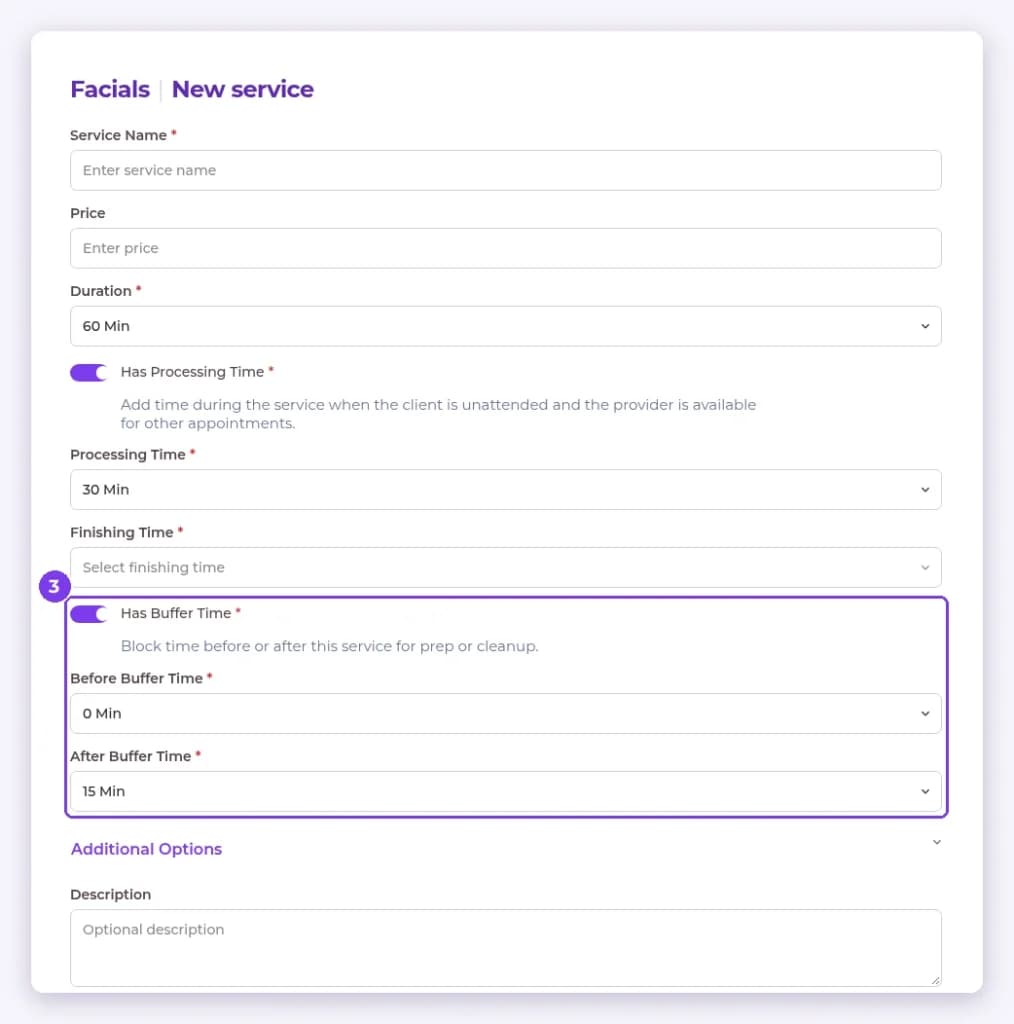
- Turn on Has Processing Time, then set the Processing Time and Finishing Time.
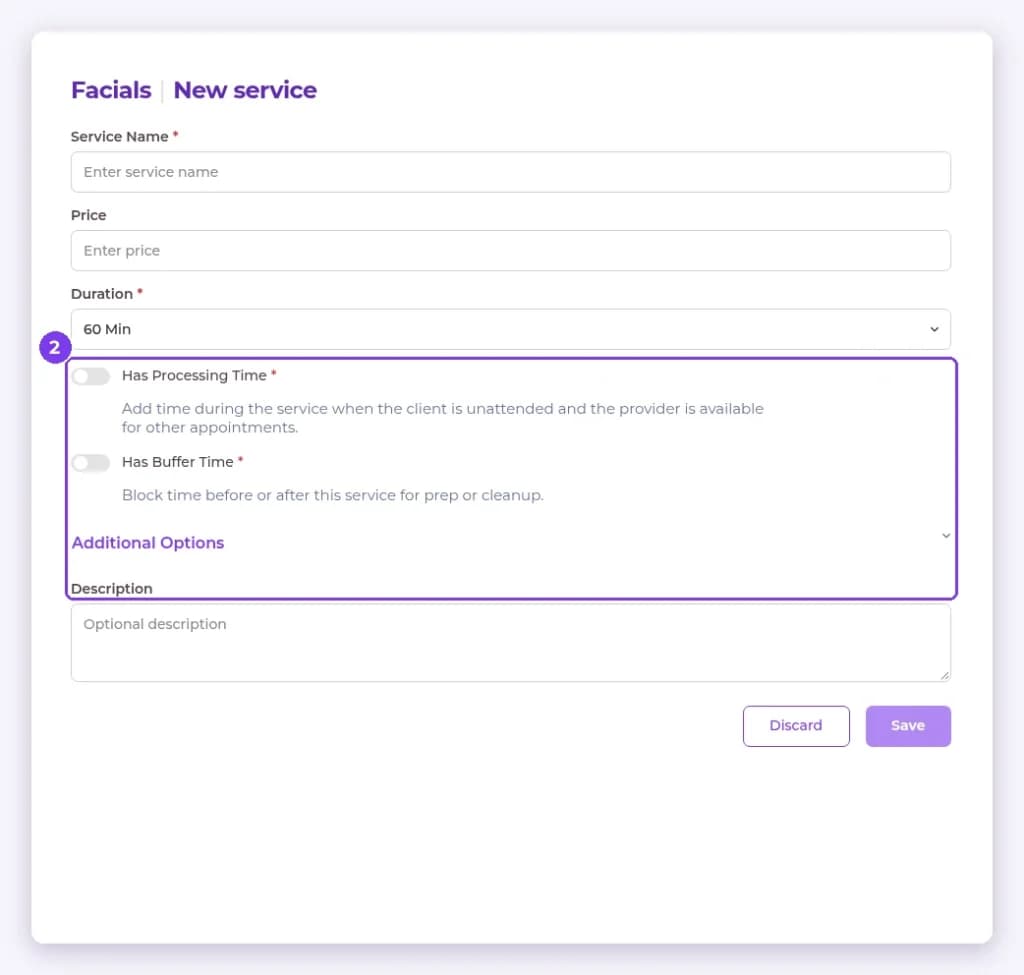
- Turn on Has Buffer Time, then set the Before Buffer Time and After Buffer Time.
- Select Save.
Result
The extra time is applied when the service is booked.
Note: Business-wide buffers and processing options are also available in Settings › Scheduling Options.
Related articles
Still have questions?
Our team is happy to help. Reach out and we'll get you sorted, or keep exploring the Learning Center.