

Edit, merge or delete a contact
Who can do this: Staff with contacts access Where to find it: Contacts › a contact › … menu ( /business/contacts ) Keep your contacts tidy…
Who can do this: Staff with contacts access
Where to find it: Contacts › a contact › … menu (/business/contacts)
Keep your contacts tidy by editing details, merging duplicates or deleting contacts.
Steps
- In Contacts, select the contact to open Client Details, then select the … menu.
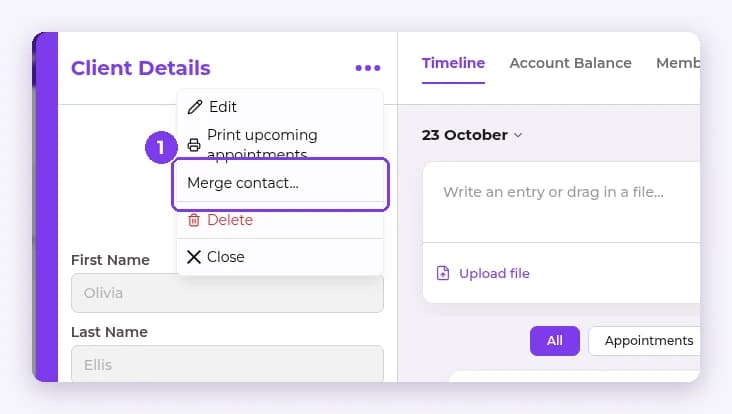
- Choose Edit, Print upcoming appointments, Merge contact… or Delete, and follow the prompts.
Result
The contact is updated, merged or deleted.
Warning: Deleting a contact may not be reversible. Check before you confirm.
Related articles
Still have questions?
Our team is happy to help. Reach out and we'll get you sorted, or keep exploring the Learning Center.