

Payment account and financial settings
Who can do this: Business owners and admins Where to find it: Settings › Payments & Sales › Payment Account and Financial Settings (…
Who can do this: Business owners and admins
Where to find it: Settings › Payments & Sales › Payment Account and Financial Settings (/business/settings/payment-account)
Manage your payment account and set up how invoices and estimates look.
Steps
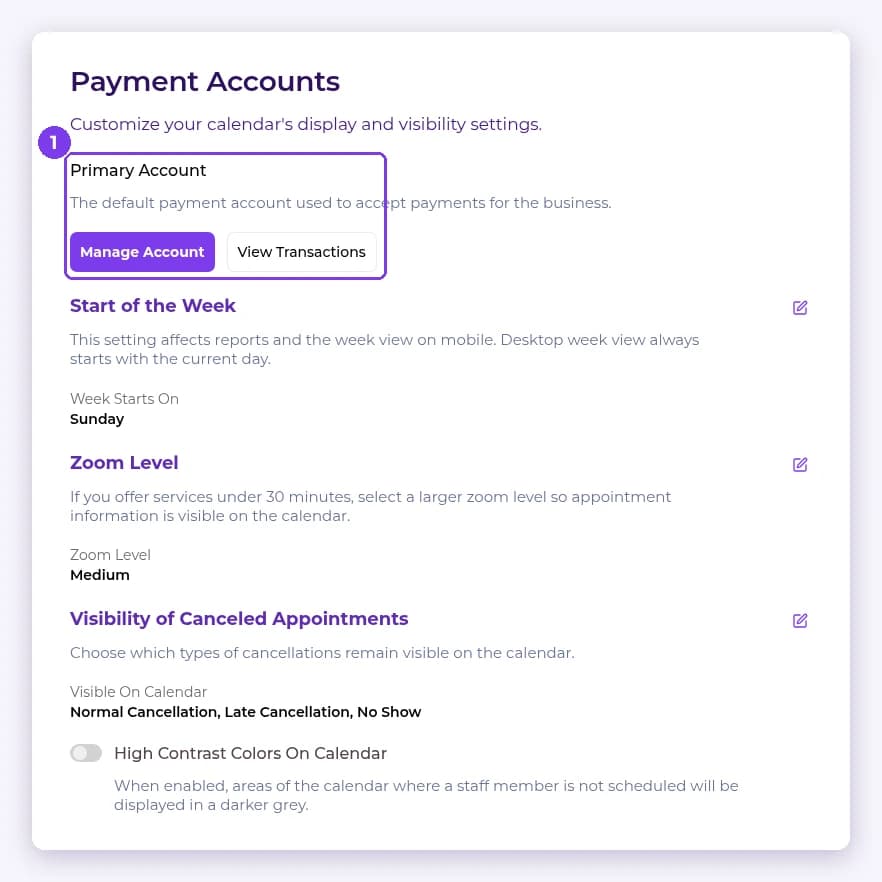
- Go to Settings › Payment Account. Under Payment Accounts you will see your Primary Account. Use Manage Account or View Transactions.
- Open Financial Settings. On the Invoice Settings tab, select the edit (pencil) icon to set the Next Invoice Number, Show Logo, Show Business Address and Show Payment Instructions.
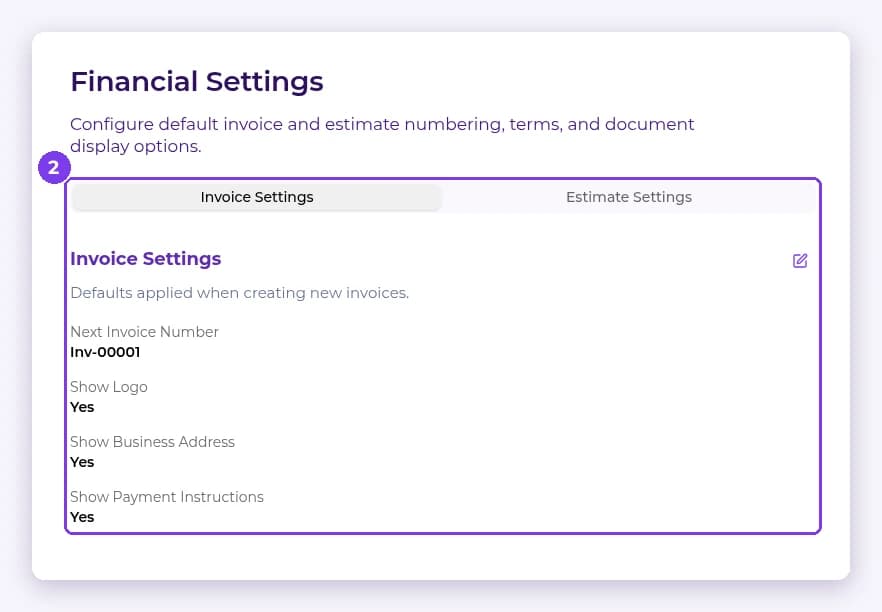
- Open the Estimate Settings tab to set the estimate number and display options, then save.
Result
Invoices and estimates use your settings.
Related articles
Still have questions?
Our team is happy to help. Reach out and we'll get you sorted, or keep exploring the Learning Center.