

Add your team and choose their roles
Who can do this: Business owners and admins Where to find it: Settings › Team ( /business/settings/team ) Add each team member so they can…
Who can do this: Business owners and admins
Where to find it: Settings › Team (/business/settings/team)
Add each team member so they can be booked, assigned to sales and sign in to PandaCue. Their User Type decides what they can do.
Before you start
- Have each team member’s first name, last name and email address ready.
Steps
- Go to Settings › Team. You will see the staff list with Name, Email, Role and Status.
- Select Add Staff Member.
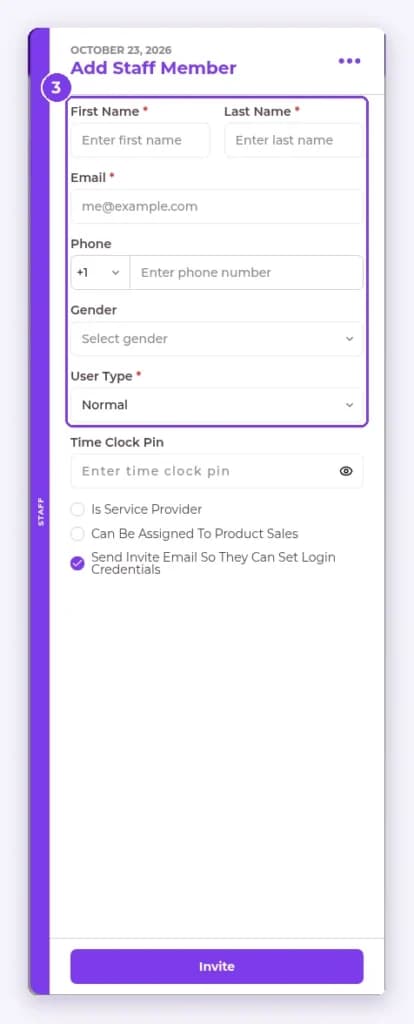
- Enter their First Name, Last Name and Email, and choose a User Type. These fields are required.
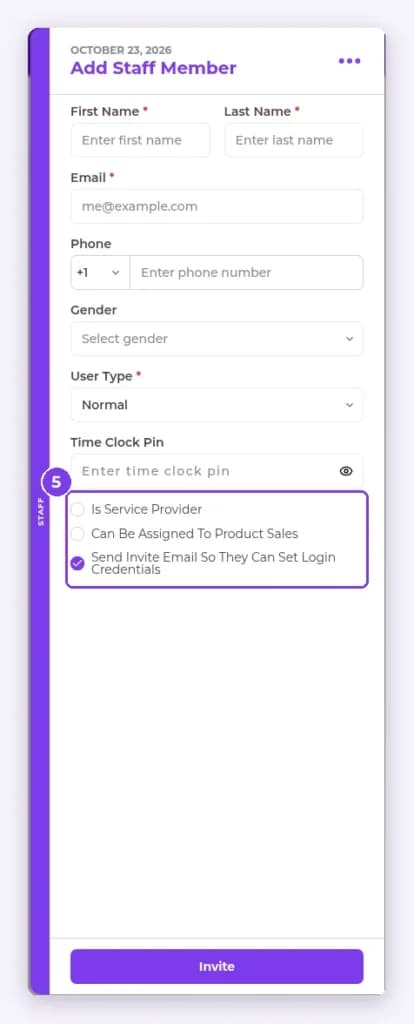
- Tick Is Service Provider if they provide services. You can also tick Can Be Assigned To Product Sales and add a Time Clock Pin.
- Leave Send Invite Email So They Can Set Login Credentials ticked to email them an invitation, then select Invite.
Result
The team member appears in the staff list. If you sent an invite, they receive an email to set up their access.
Note: Only team members with Is Service Provider ticked can provide services.
FAQ
Can I change a team member’s role later?
Yes. Open the team member from the staff list to edit their details and permissions.
Related articles
Still have questions?
Our team is happy to help. Reach out and we'll get you sorted, or keep exploring the Learning Center.