

Turn on online booking and share your booking links
Who can do this: Business owners and admins Where to find it: Settings › Online Booking ( /business/settings/online-booking ) Online…
Who can do this: Business owners and admins
Where to find it: Settings › Online Booking (/business/settings/online-booking)
Online booking lets clients book themselves. Turn it on, share your public booking link or add it to your website, and give each staff member a personal booking link.
Before you start
- Add at least one service and one service provider.
- Set your business hours.
Steps
- Go to Settings › Online Booking › Setup & Integration.
- Turn on the Online Booking toggle (Allow clients to book appointments online).
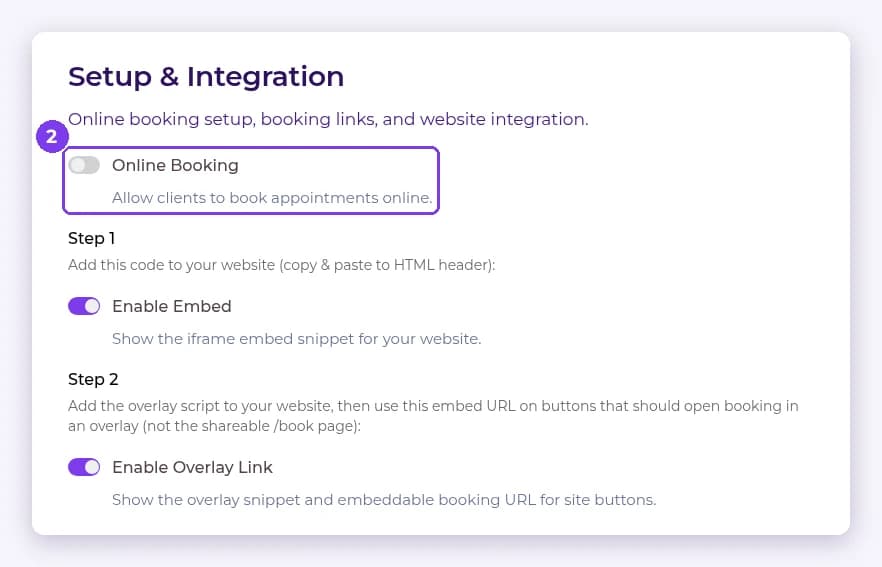
- Use Step 1 Enable Embed and Step 2 Enable Overlay Link to add booking to your website, and copy your public booking URL to share it.
- Open Preferences to set your booking window, minimum notice and other rules.
- Open Staff Selection to get each staff member’s booking link. Links are generated once online booking is on and a public booking URL is set in Setup & Integration. You can also turn on Randomize Staff Order, Show Gender Options and Show "anyone" Option.
Result
Clients can book online through your public booking link, your website, or a staff member’s personal link.
Tip: Test your booking link in a private browser window before you share it.
Warning: Check each staff link opens that person’s booking page before you share it.
FAQ
Can I add booking to my website?
Yes. Use the iframe embed or the overlay script from Setup & Integration.
Related articles
Still have questions?
Our team is happy to help. Reach out and we'll get you sorted, or keep exploring the Learning Center.