

Set up your business details
Who can do this: Business owners and admins Where to find it: Settings › Business Setup › Business Details ( /business/settings/profile )…
Who can do this: Business owners and admins
Where to find it: Settings › Business Setup › Business Details (/business/settings/profile)
Your business details appear across PandaCue, including on client messages, invoices and your booking page. Set them first so everything that follows uses the right name, country and currency.
Before you start
- You are signed in to your PandaCue business account.
- Have your business name, country, currency and the owner’s contact details ready.
Steps
- Open Settings. You can type in Search settings… to jump straight to a page.
- Open Business Details and select the edit (pencil) icon. Enter your Business Name, Website, Country and Currency.
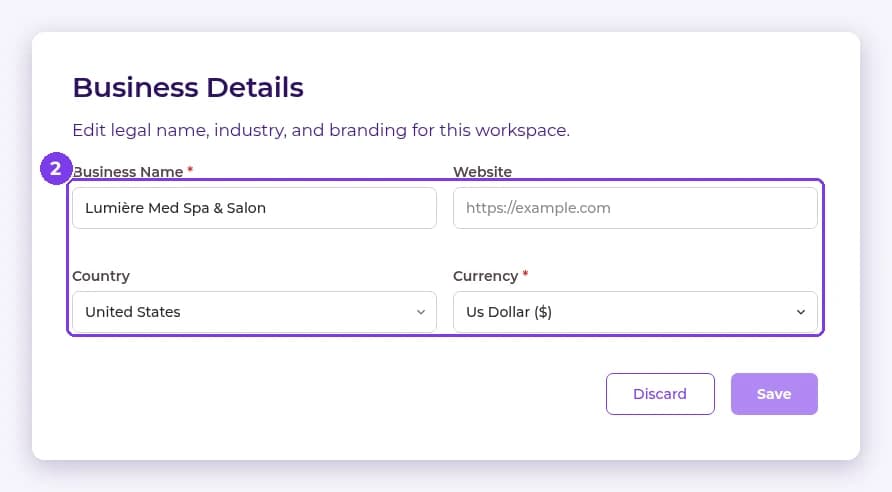
- Select Save. Select Discard to cancel your changes.
- Open Primary contact and add the owner’s contact details.
- Open Regional & tax, select the edit icon and set your Timezone, Currency, Currency Symbol, Default Tax Rate (%) and whether Prices Include Tax.
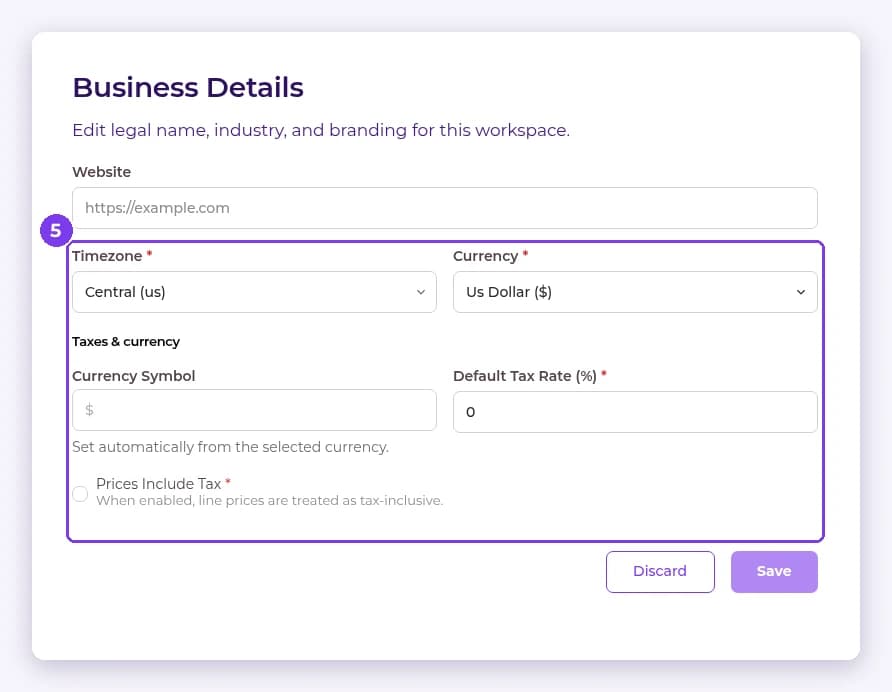
- Select Save.
Result
Your business name, country, currency, primary contact and regional settings are saved and used across PandaCue.
Tip: Set your currency before you add services and products, so prices are entered in the right currency.
Note: Locations and business hours are set separately. See the related article below.
FAQ
Can I change my business details later?
Yes. Return to Settings › Business Details at any time.
Related articles
Still have questions?
Our team is happy to help. Reach out and we'll get you sorted, or keep exploring the Learning Center.