

Add your first services
Who can do this: Business owners and admins Where to find it: Settings › Services ( /business/settings/services ) Services are what clients…
Who can do this: Business owners and admins
Where to find it: Settings › Services (/business/settings/services)
Services are what clients book. Group them into categories, then add each service with its price and duration.
Before you start
- Decide on your service categories, for example Hair, Nails or Facials.
- Have each service’s name, price and duration ready.
Steps
- Go to Settings › Services. Your categories are listed in the sidebar.
- Select Add Category, enter the Category Name and select Create.
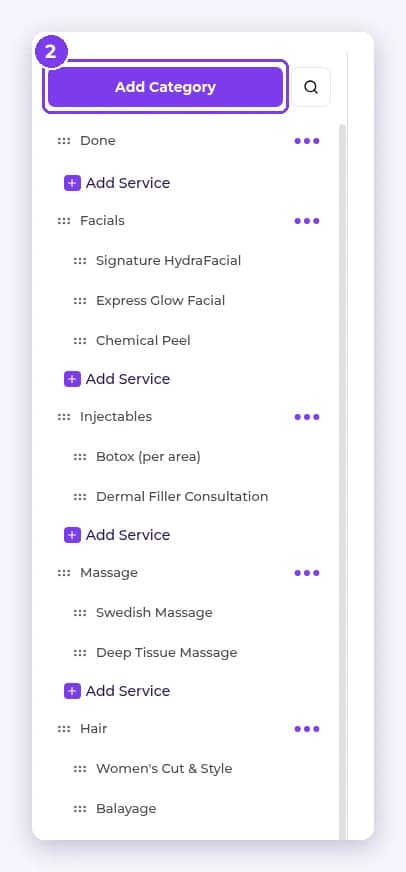
- Under the category in the sidebar, select Add Service. The New service panel opens.
- Enter the Service Name, Price and Duration. Duration defaults to 60 Min.
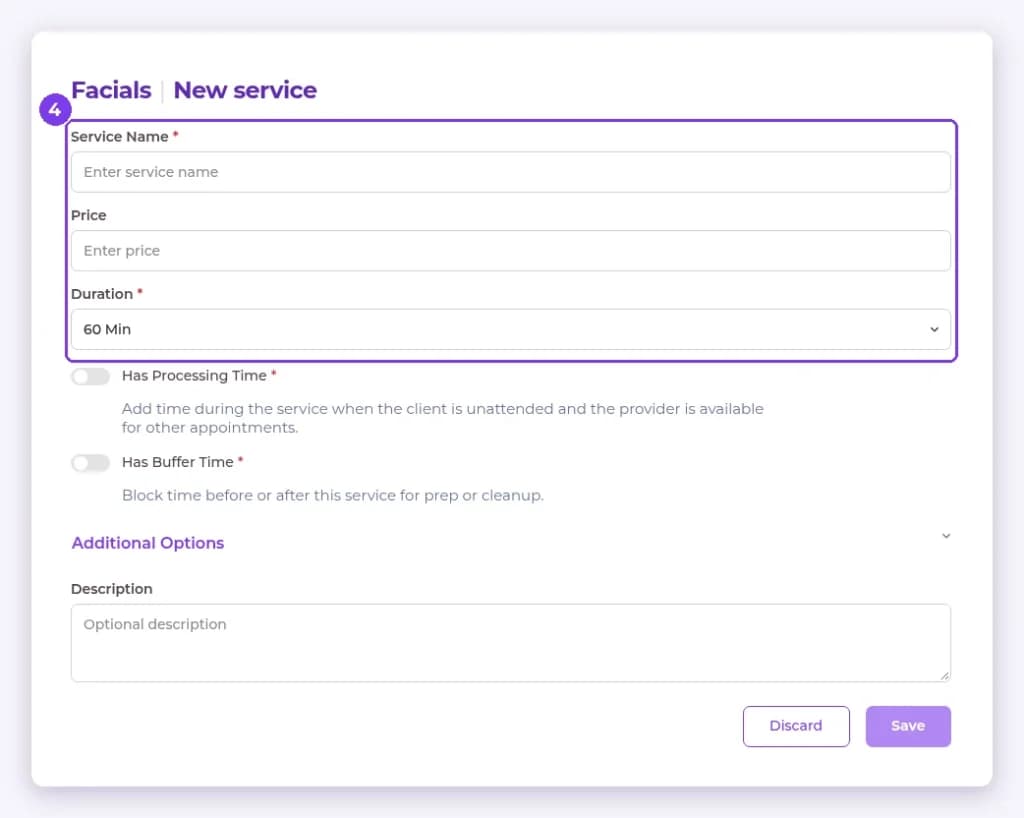
- Add a Description if you want, then select Save.
Result
Your category and service appear in the Services list and can be booked on the calendar.
Tip: Use processing and buffer time for services that need setup, clean-up or waiting time. See the Services articles for details.
FAQ
Can I import services instead?
Yes. Services can be imported from Settings › Data import & export.
Related articles
Still have questions?
Our team is happy to help. Reach out and we'll get you sorted, or keep exploring the Learning Center.